Howdy Aerosnaughts,
We have a cool new SuperSwitch support update for you, which also includes some useful bug fixes. Read the full changelog at the bottom of this post.

5.4.5 is officially released to WiFi as of 2/19/26!
Download v5.4.5 here (Edited 12/19/25)
Read the manuals here:
Aeros Loop Studio Official Manual (Firmware 5.4.5)_compressed.pdf (14.4 MB)
Aeros Loop Studio Official Manual (Firmware 5.4.5) - PRINTER FRIENDLY-compressed.pdf (7.1 MB)
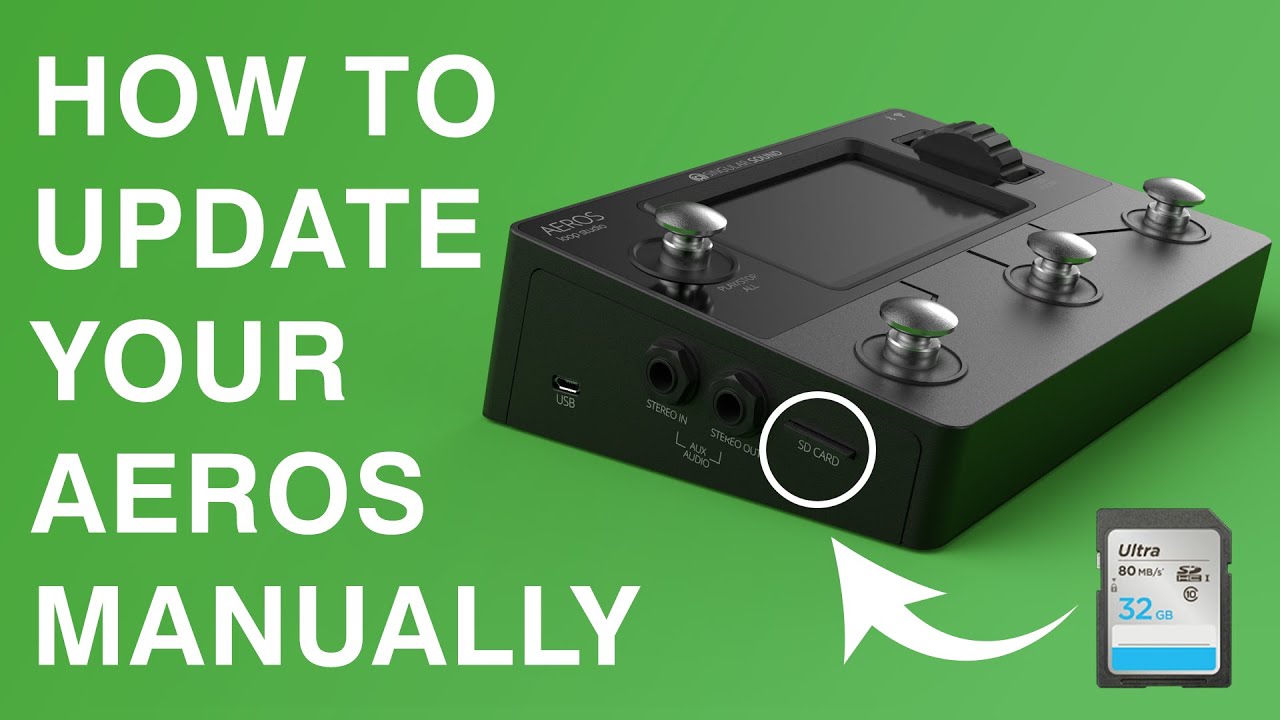
How to Update to Aeros Firmware 5.4.5 (SD card method)
- Download the 5.4.5 version and place it on your SD card
- Rename the 5.4.5 update file to “aeros.bin” once it is on your SD card.
- Insert the SD card into the Aeros SD card slot while the Aeros is off, and turn the Aeros on. The Aeros will take about 10 minutes to update.
You can revert to the previous version v5.3.4 here
SuperSwitch Compatibility
The Aeros can now be controlled using the SuperSwitch as an extension of the main buttons, no MIDI or power for the SuperSwitch required!
To enable the SuperSwitch for use, go to the Device Settings and enter the Accessory menu. Accessory used to be the “Pedal” menu, now you can set up either an Expression Pedal (EXP) or a SuperSwitch for use with the Aeros. Set the Type setting to SuperSwitch to set the behaviors and use the new device.
The SuperSwitch defaults are:
Switch 1: Open/Close Slideout
Switch 2: Open Mixer 1
Switch 3: Open Mixer 2
Switch 4: Loop Studio
Switch 5: Mute Pause
Switch 6: Clear Song
Check out this full list of all features here:
| Main Page | Sub Folder | Behavior | Info |
|---|---|---|---|
| Device Settings | Rec Source Mn In | Toggles the Recording Source: Toggle Main In setting | |
| Rec Source Aux In | Toggles the Recording Source: Toggle Aux In setting | ||
| Mn In Route Mn Out | Toggles the Main Input Routing: Toggle Main Out setting | ||
| Mn In Route Aux Out | Toggles the Main Input Routing: Toggle Aux Out setting | ||
| Aux In Route Mn Out | Toggles the Aux Input Routing: Toggle Main Out setting | ||
| Aux In Route Aux Out | Toggles the Aux Input Routing: Toggle Aux Out setting | ||
| Click Route Mn Out | Toggles the Click Routing: Toggle Main Out setting | ||
| Click Route Aux Out | Toggles the Click Routing: Toggle Aux Out setting | ||
| Toggle VU Meter | Toggles the Toggle VU Meter setting | ||
| Toggle RPO/ROP | Toggles the RPO/ROP setting | ||
| Click Toggle | Toggles the Click setting | ||
| Count In Toggle | Toggles the Count in setting | ||
| Count In 1st Track | Toggles the Count In 1st Track setting | ||
| Cancel Rec Toggle | Toggles the Toggle Cancel Recording setting | ||
| Stop Song Toggle | Toggles the Stop Song setting | ||
| Change Part Toggle | Toggles the Change Part setting | ||
| Mute/Unmute Toggle | Toggles the Mute/Unmute setting | ||
| MIDI Mode Toggle | Toggles the MIDI Mode setting | ||
| MIDI In: Start Toggle | Toggles the MIDI In: Start setting | ||
| Start: 1st Rec Toggle | Toggles the Start: 1st Recording setting | ||
| Send Stop Empty Part Toggle | Toggles the Send Stop at Empty Part setting | ||
| Stop Fade Out Toggle | Toggles the Stop Fade Out setting | ||
| Start Fade In Toggle | Toggles the Start Fade in setting | ||
| Mute/Unmute Fade Toggle | Toggles the Mute/Unmute Fade setting | ||
| Screen Controls | |||
| Songs List | Goes to Songs List (if already in Songs List screen, is ignored) | ||
| Loop Studio | Goes to Loop Studio screen (if already in Loop Studio screen, is ignored) | ||
| Home | Goes to Home Screen | ||
| Device Settings | Goes to Device Settings Screen | ||
| Updates | Goes to Updates Page | ||
| Open Mixer | Opens the Mixer screen | ||
| Open Mixer 2 | Opens the Mixer 2 screen | ||
| Open/Close Slideout Menu | Opens or closes the Loop Studio Hands Free Slideout Menu | ||
| Sleep Screen | Puts the screen to sleep | ||
| Song Commands | |||
| File Commands | Save | Saves the currently open Aeros song if a change was made since last saved and the Aeros is currently stopped. | |
| New 2x2 | Starts a new 2x2 song (same settings as previously loaded 2x2 song) and enters the Loop Studio. | ||
| New 6x6 | Starts a new 6x6 song (same settings as previously loaded 6x6 song) and enters the Loop Studio | ||
| Open Prev Song | Opens the Previous Song in the current album | ||
| Open Next Song | Opens the Next Song in the current album | ||
| Copy Song | Copies the currently open song and opens the copy | ||
| Reopen Song | Reopens the currently open song, this returns you to your last saved state. | ||
| Go To Albums | Opens the Songs menu to the Albums screen of the current memory device (SD/Internal) | ||
| Open Current Album | Opens the Songs menu to the current album | ||
| Mute & Solo | |||
| Mute Sel Track | Mutes the selected track | ||
| Mute All | Mutes all tracks | ||
| Unmute All | Unutes all muted tracks | ||
| Mute Pause | Mutes all tracks according to the mute Behavior device settings. This makes it easy to mute all tracks at the same place regardless of their individual lengths. | ||
| Mute/Unmute T1 | Mutes/Unmutes track depending on current state | ||
| Mute/Unmute T2 | Mutes/Unmutes track depending on current state | ||
| Mute/Unmute T3 | Mutes/Unmutes track depending on current state | ||
| Mute/Unmute T4 | Mutes/Unmutes track depending on current state | ||
| Mute/Unmute T5 | Mutes/Unmutes track depending on current state | ||
| Mute/Unmute T6 | Mutes/Unmutes track depending on current state | ||
| Mute T1 | Mute Track 1, follows the global Mute Settings | ||
| Mute T2 | Mute Track 2, follows the global Mute Settings | ||
| Mute T3 | Mute Track 3, follows the global Mute Settings | ||
| Mute T4 | Mute Track 4, follows the global Mute Settings | ||
| Mute T5 | Mute Track 5, follows the global Mute Settings | ||
| Mute T6 | Mute Track 6, follows the global Mute Settings | ||
| Unmute T1 | Unmute Track 1, follows the global Mute Settings | ||
| Unmute T2 | Unmute Track 2, follows the global Mute Settings | ||
| Unmute T3 | Unmute Track 3, follows the global Mute Settings | ||
| Unmute T4 | Unmute Track 4, follows the global Mute Settings | ||
| Unmute T5 | Unmute Track 5, follows the global Mute Settings | ||
| Unmute T6 | Unmute Track 6, follows the global Mute Settings | ||
| Mute T1 EOL | Mute Track 1 at the End of Loop (EOL) | ||
| Mute T2 EOL | Value 32: Mute Track 2 at the End of Loop (EOL) | ||
| Mute T3 EOL | Value 33: Mute Track 3 at the End of Loop (EOL) | ||
| Mute T4 EOL | Value 34: Mute Track 4 at the End of Loop (EOL) | ||
| Mute T5 EOL | Value 35: Mute Track 5 at the End of Loop (EOL) | ||
| Mute T6 EOL | Value 36: Mute Track 6 at the End of Loop (EOL) | ||
| Unmute T1 EOL | Value 41: Unmute Track 1 at the End of Loop (EOL) | ||
| Unmute T2 EOL | Value 42: Unmute Track 2 at the End of Loop (EOL) | ||
| Unmute T3 EOL | Value 43: Unmute Track 3 at the End of Loop (EOL) | ||
| Unmute T4 EOL | Value 44: Unmute Track 4 at the End of Loop (EOL) | ||
| Unmute T5 EOL | Value 45: Unmute Track 5 at the End of Loop (EOL) | ||
| Unmute T6 EOL | Value 46: Unmute Track 6 at the End of Loop (EOL) | ||
| Mute T1 EOM | Value 51: Mute Track 1 at the End of Measure (EOM) | ||
| Mute T2 EOM | Value 52: Mute Track 2 at the End of Measure (EOM) | ||
| Mute T3 EOM | Value 53: Mute Track 3 at the End of Measure (EOM) | ||
| Mute T4 EOM | Value 54: Mute Track 4 at the End of Measure (EOM) | ||
| Mute T5 EOM | Value 55: Mute Track 5 at the End of Measure (EOM) | ||
| Mute T6 EOM | Value 56: Mute Track 6 at the End of Measure (EOM) | ||
| Unmute T1 EOM | Value 61: Unmute Track 1 at the End of Measure (EOM) | ||
| Unmute T2 EOM | Value 62: Unmute Track 2 at the End of Measure (EOM) | ||
| Unmute T3 EOM | Value 63: Unmute Track 3 at the End of Measure (EOM) | ||
| Unmute T4 EOM | Value 64: Unmute Track 4 at the End of Measure (EOM) | ||
| Unmute T5 EOM | Value 65: Unmute Track 5 at the End of Measure (EOM) | ||
| Unmute T6 EOM | Value 66: Unmute Track 6 at the End of Measure (EOM) | ||
| Mute T1 Imm | Value 71: Mute Track 1 Immediately | ||
| Mute T2 Imm | Value 72: Mute Track 2 Immediately | ||
| Mute T3 Imm | Value 73: Mute Track 3 Immediately | ||
| Mute T4 Imm | Value 74: Mute Track 4 Immediately | ||
| Mute T5 Imm | Value 75: Mute Track 5 Immediately | ||
| Mute T6 Imm | Value 76: Mute Track 6 Immediately | ||
| Unmute T1 Imm | Value 81: Unmute Track 1 Immediately | ||
| Unmute T2 Imm | Value 82: Unmute Track 2 Immediately | ||
| Unmute T3 Imm | Value 83: Unmute Track 3 Immediately | ||
| Unmute T4 Imm | Value 84: Unmute Track 4 Immediately | ||
| Unmute T5 Imm | Value 85: Unmute Track 5 Immediately | ||
| Unmute T6 Imm | Value 86: Unmute Track 6 Immediately | ||
| Solo Track 1 | Solos track 1 This behaves like a XOR solo function, only one track can be soloed at a time in a given song part. | ||
| Solo Track 2 | Solos track 2 This behaves like a XOR solo function, only one track can be soloed at a time in a given song part. | ||
| Solo Track 3 | Solos track 3 This behaves like a XOR solo function, only one track can be soloed at a time in a given song part. | ||
| Solo Track 4 | Solos track 4 This behaves like a XOR solo function, only one track can be soloed at a time in a given song part. | ||
| Solo Track 5 | Solos track 5 This behaves like a XOR solo function, only one track can be soloed at a time in a given song part. | ||
| Solo Track 6 | Solos track 6 This behaves like a XOR solo function, only one track can be soloed at a time in a given song part. | ||
| Unsolo | Un-solos any soloed track, this unmutes all other tracks in the song part. | ||
| Recording | |||
| Record New Part | Begins or sets up a recording in the next empty part available, if there are no empty parts left in the song it is ignored | ||
| Record New Track | Begins or sets up a recording on the next available empty track, if no tracks are left to record to in a part, it will be ignored. In 6x6, if a new part is selected, this command will start or set up a recording in the new part. If recording to the last track in a part, sending this command will commit the current recording. If there is an undone track and all other tracks are recorded to, this command will record to the next available undone track in order. | ||
| Commit Recording | This commits any current recording or overdub and goes into playback mode | ||
| RPO Selected | Record/Play/Overdub on selected track (6x6). This will follow the RPO setting in the device Behavior settings menu. | ||
| RPO 1 | Record/Play/Overdub on Track 1. This will follow the RPO setting in the device Behavior settings menu. | ||
| RPO 2 | Record/Play/Overdub on Track 2. This will follow the RPO setting in the device Behavior settings menu. | ||
| Song Controls | |||
| Clear Song | Clears the Aeros song with a confirmation, follows the Clear Song Confirmation setting state | ||
| Clear Song Immediately | Clears the song (deletes all tracks) with no confirmation when the looper is stopped and in the Loop Studio screen. Note: You CANNOT undo this action. | ||
| Start | Starts the Aeros playback | ||
| Stop | Stops the Aeros playback according to the Stop Song behavior setting | ||
| Stop Immediately | Stop all playback immediately | ||
| Cancel Stop | Cancels a cued stop on the Aeros, playback will continue in the current part | ||
| Stop EOM | Stops the song at the end of the current measure | ||
| Stop EOL | Stops the song at the end of the longest loop in the current song part | ||
| Stop Imm | Stops Aeros Immediately | ||
| Tempo +1 | Increases tempo by 1 | ||
| Tempo -1 | Decreases tempo by 1 | ||
| Tap Tempo | Approximates the tempo based on the timing of the first 4 presses and every other press afterwards | ||
| Delete Last Part | Deletes the last part of the currently open part in the Loop Studio screen. This also saves the song in its current state. | ||
| Track Controls | |||
| Lock/Unlock Track | Locks or unlocks the current track depending on its state. Lock rules are respected. | ||
| Reverse Sel Track | Reverses the selected track at the end of that track’s loop. Hit while recording to commit the recording and reverse playback in one action. | ||
| Reverse T1 | Reverses track 1 at the end of that track’s loop. Hit while recording to commit the recording and reverse playback in one action. | ||
| Reverse T2 | Reverses track 1 at the end of that track’s loop. Hit while recording to commit the recording and reverse playback in one action. | ||
| Reverse T3 | Reverses track 1 at the end of that track’s loop. Hit while recording to commit the recording and reverse playback in one action. | ||
| Reverse T4 | Reverses track 1 at the end of that track’s loop. Hit while recording to commit the recording and reverse playback in one action. | ||
| Reverse T5 | Reverses track 1 at the end of that track’s loop. Hit while recording to commit the recording and reverse playback in one action. | ||
| Reverse T6 | Reverses track 1 at the end of that track’s loop. Hit while recording to commit the recording and reverse playback in one action. | ||
| Select Next Track | Selects the Next Track in 6x6. If the track is empty, a recording will start in the empty track either immediately or at the next sync point (if there are sync rules). To return to the first track without starting a recording tap twice quickly to cancel the recording and select track 1. | ||
| Select Prev Track | Selects the previous track in 6x6 | ||
| Transitions | |||
| Next Part | Transitions to the next part following the Change Part Device menu Settings | ||
| Prev Part | Transitions to the previous part following the Change Part Device menu Settings | ||
| Cancel Transition | Cancels any pending transition | ||
| Part 1 | Transitions to part 1 following the Change Part Device menu Settings | ||
| Part 2 | Transitions to part 2 following the Change Part Device menu Settings | ||
| Part 3 | Transitions to part 3 following the Change Part Device menu Settings | ||
| Part 4 | Transitions to part 4 following the Change Part Device menu Settings | ||
| Part 5 | Transitions to part 5 following the Change Part Device menu Settings | ||
| Part 6 | Transitions to part 6 following the Change Part Device menu Settings | ||
| Part 1 Imm | Transitions to part 1 immediately | ||
| Part 2 Imm | Transitions to part 2 immediately | ||
| Part 3 Imm | Transitions to part 3 immediately | ||
| Part 4 Imm | Transitions to part 4 immediately | ||
| Part 5 Imm | Transitions to part 5 immediately | ||
| Part 6 Imm | Transitions to part 6 immediately | ||
| Part 1 EOM | Transitions to part 1 at the end of the measure (EOM) | ||
| Part 2 EOM | Transitions to part 2 at the end of the measure (EOM) | ||
| Part 3 EOM | Transitions to part 3 at the end of the measure (EOM) | ||
| Part 4 EOM | Transitions to part 4 at the end of the measure (EOM) | ||
| Part 5 EOM | Transitions to part 5 at the end of the measure (EOM) | ||
| Part 6 EOM | Transitions to part 6 at the end of the measure (EOM) | ||
| Part 1 EOL | Transitions to part 1 at the end of the loop (EOL) according to the longest track in the part | ||
| Part 2 EOL | Transitions to part 2 at the end of the loop (EOL) according to the longest track in the part | ||
| Part 3 EOL | Transitions to part 3 at the end of the loop (EOL) according to the longest track in the part | ||
| Part 4 EOL | Transitions to part 4 at the end of the loop (EOL) according to the longest track in the part | ||
| Part 5 EOL | Transitions to part 5 at the end of the loop (EOL) according to the longest track in the part | ||
| Part 6 EOL | Transitions to part 6 at the end of the loop (EOL) according to the longest track in the part | ||
| Undo/Redo | |||
| Undo/redo selected track | Undo/Redo currently selected track’s top layer (6x6 mode) | ||
| Undo/redo T1 top layer | Undo/Redo track 1’s top layer | ||
| Undo/redo T2 top layer | Undo/Redo track 2’s top layer | ||
| Undo/redo T3 top layer | Undo/Redo track 3’s top layer | ||
| Undo/redo T4 top layer | Undo/Redo track 4’s top layer | ||
| Undo/redo T5 top layer | Undo/Redo track 5’s top layer | ||
| Undo/redo T6 top layer | Undo/Redo track 6’s top layer | ||
| Songs List Controls | Scroll Down | Scroll down list (songs list, or otherwise if relevant) | |
| Scroll Up | Scroll up list (songs list, or otherwise if relevant) | ||
| Select | Select currently highlighted item in song list | ||
| Delete song from list | Starts the deletion confirmation dialog to delete a song in the Songs List | ||
| Top of List | Goes to the top of the Songs List immediately | ||
| Bottom of list | Goes to the bottom of the Songs List immediately |
5.4.5 Changelog
- Improved speed of visual response when using the SuperSwitch to trigger events on the Aeros. There is still some delay, but it is purely visual, the Aeros responds right as the SuperSwitch is pressed.
5.4.4 Changelog
- Fixed issue with Aeros not registering midi sync if cables are plugged in before the Aeros is powered on
- Fixed issues with the SuperSwitch tempo command:
- it now goes up or down by 1
- it now works in the song parameters screen
- It no longer works when changing tempo is disabled (eg, a non-blank song)
- the latter 2 are also fixed for the MIDI commands (CC:80 and CC:81)
- The Aeros now detects what is plugged into the accessory port, EXP or SuperSwitch
- it will block incoming signal if the connected device doesn’t match the settings
- A popup offers to switch the set mode in the case of such a mismatch
- Fixed an issue where plugging in the SuperSwitch could cause it to behave as if all buttons were pressed
- Fixed an issue with incorrect triggering of SuperSwitch buttons (eg, holding button 2 caused the action for button 6 to trigger)
- The clear song SuperSwitch command will now confirm the popup if the Clear Song confirmation popup is open
- Implemented missing SuperSwitch commands:
- Loop decay toggle
- Sleep screen
- Copy song
- Go to Albums
- Open Current Album
- Commit Recording
- Capitalized “List” in “Bottom of list” in SuperSwitch options
- Fixed an issue where the SuperSwitch command for toggling Count In 1st Track would not visually update the setting while in the device settings page if you had just disabled Count In Record in the same menu
- Fixed a crash after the start command (CC43:1) if received in the LFZ with a backing track present
5.4.3 Changelog
- Added SuperSwitch compatibility to EXP In port settings
- Changed “Pedal” submenu in the device settings to “Accessory”
Bug fixes:
- Fixed issue where the Aeros would not switch to part 2 when receiving the Previous Part command
- Fixed issue where the Next Part and Previous Part commands would always switch parts immediately instead of following the Aeros’ Change Part Behavior setting