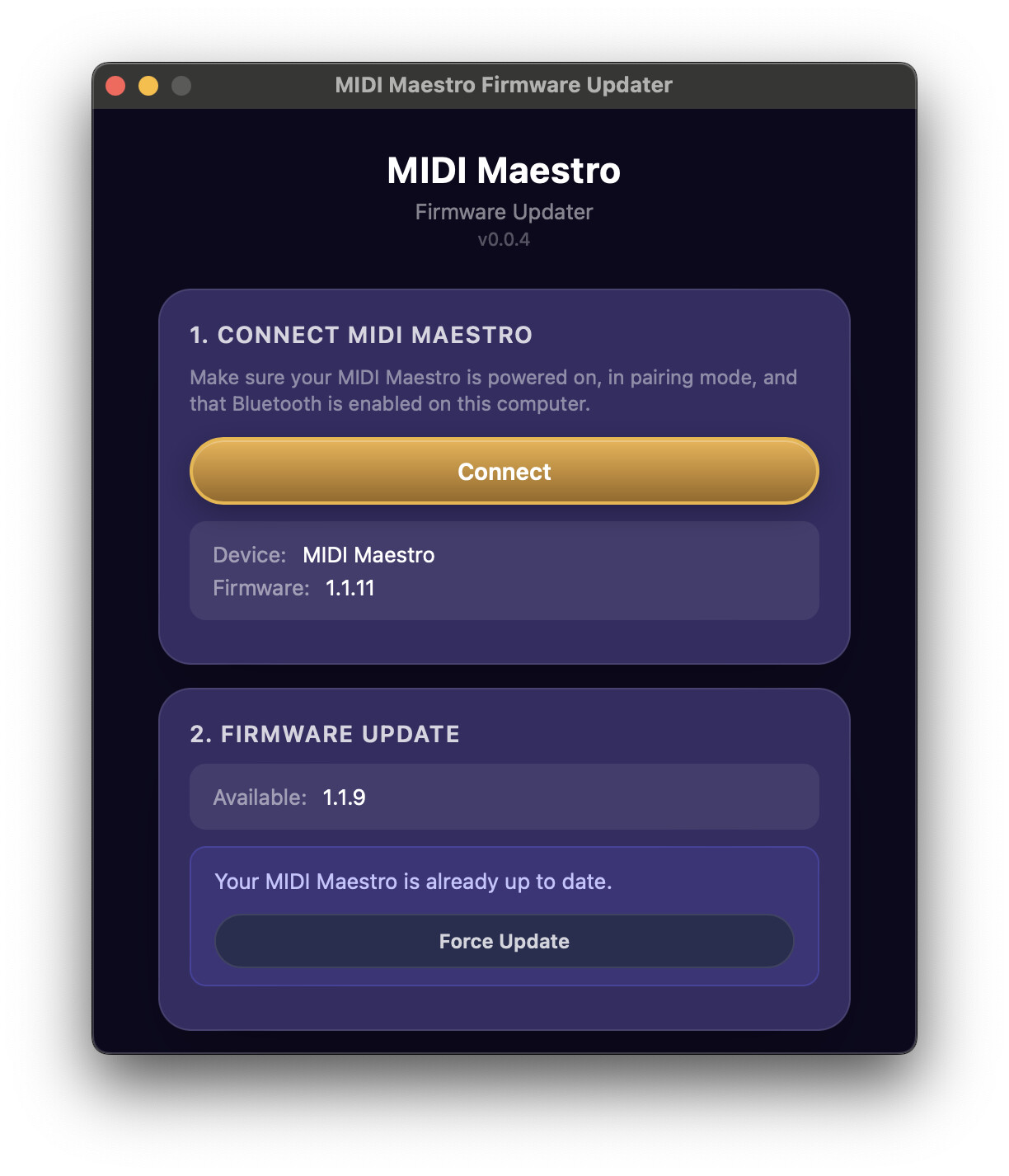
The MIDI Maestro has recently had issues connecting with the latest iPhone iOS 26 version. We have been investigating internally, and although the preliminary news we got from the developers was that we couldn’t address it and needed to wait on Apple to fix it, we continued to investigate and have found a stopgap solution.
In basic terms, the MIDI Maestro on version 1.1.9 is not able to communicate with the new iOS 26 version and will require a firmware update (v1.1.11) to allow users to continue to update the firmware, update the default modes, and sync custom modes going forward. The issue here is that if the MIDI Maestro cannot currently connect to your iOS device, a new firmware cannot be loaded onto the device using iOS 26 in the first place.
For this reason, we have made a simple desktop app, the MIDI Maestro Firmware Updater, for Mac and Windows that can send the firmware file (which we will provide with steps once it is ready) through BLE to your MIDI Maestro. After updating the firmware, your iOS 26 device should have no issue writing the default modes and then writing custom modes as intended.
Download the two MIDI Maestro Firmware files, the new firmware is v1.1.11
a. Download both “image A” and “image B” files
b. Find them here
Download and install the appropriate MIDI Maestro Updater application file
Mac OS updater - Steps:
i. Open the .dmg file on your Mac
ii. Once a window showing the app file and your Applications folder pops up, drag and drop the app file (with the Singular Sound icon) into your Applications folder.
iii. Double click the Applications folder icon, and then find and open the MIDI Maestro Updater app from inside the Applications folder
iv. If your computer asks “‘MIDI Maestro Updater.app’ is an app downloaded from the Internet. Are you sure you want to open it?”, click “Open”
Windows updater - Steps:
i. Open the .exe file to start the installation process and follow the steps onscreen
Power up the Midi Maestro
On the MIDI Maestro, hold the Bluetooth button until the blue light indicator blinks
On a computer equipped with Bluetooth, open the MIDI Maestro Desktop Updater application (v0.0.4) if you haven’t already.
If a pop-up asks for Bluetooth permission, click “Allow”.
Click on the “Connect” button. The device should be found automatically.
Scroll down to the section that says Select Firmware Update.
For image A, click on “Choose File” and select the “image A” firmware file you downloaded
Then, for image B, click on “Choose File” and select the “image B” firmware file you downloaded
Once both firmware files have been selected appropriately, click “Upload with Local Files”.
Let the firmware update complete. The process will take ~15-30 minutes in total (good time to make a coffee or restring your guitar).
Once the firmware update completes, the device may automatically reboot with the new firmware loaded. If it does not automatically restart within 10s of the update being complete, you can turn the MIDI Maestro off and back on manually.
Double check that firmware version on the Midi Maestro display now says v1.1.11
Now you can use your iPhone or iPad on the latest v26 operating system for future firmware updates, load the default modes, and update your MIDI Maestro’s custom mode
This update will have no effect on Android users and is completely optional for non-iOS users
Thank you all for your patience as we investigate and solve this issue.
I’m a bit reluctant to post this but the issue seems to be fixed since the last public beta release. Is anyone else seeing the same or is it a fluke ? I’ve tested it a bunch of times and it’s working flawlessly.
It’s public beta 26.4 on my ipad. I haven’t tested my phone. I’ve power cycled the ipad and MM and it’s still working perfectly. Fingers crossed it’s a permanent solution.
I tested this on my phone. Ios 26.4 beta. Also working perfectly. I’d be cautiously optimistic and confident in an apple fix here but won’t count any chickens just yet.
@BrennanSingularSound can the Midi Maestro be updated to the latest firmware that addresses the BLE problem using the iOS App if IOS 26.4 RC is working now?
We are getting reports that it is still not working for some people, so we cannot recommend it. If you wish to do so, it is at your own risk. What we recommend is updating using the Desktop Updater.
I did the MM update and got it to work. Now update firmware in the iOS app to 1.11 so one would not downgrade by accident. Also, once new firmware is installed, from IOS app first download default mode, reboot, and enter mode, then select custom and you can download custom setup. It took a couple of tries to get out of EEPROM mode. It took you (SS) to much time to figure this out but you did. Thanks You!!!
Thanks for finding this solution for us. I was able to update the firmware using the desktop updater, but I’m still getting EEPROM INVALID. When I try to Update Default Modes, I get a “Transmission Error” message every time (despite power cycling, reinstalling the app, etc), and it does not seem to connect with my iPhone or iPad – the bluetooth light keeps flashing. I’m updating to iOS 26.4 and will try that too, but I’d love any other suggestions you might have. Thanks!
Update: iOs 26.4 seemed to do the trick. I was able to connect my iPhone, update default modes, and it reflected firmware 1.1.9 when I power cycled the maestro.
However the firmware is still 1.1.9 not the latest 1.1.11. I tried multiple times to update the firmware and default modes and it never updated to 1.1.11.
Thanks for sharing the details! If the issue persists, you can also send a video of the steps you take to support@singularsound.com, and I’ll be happy to assist you accordingly.
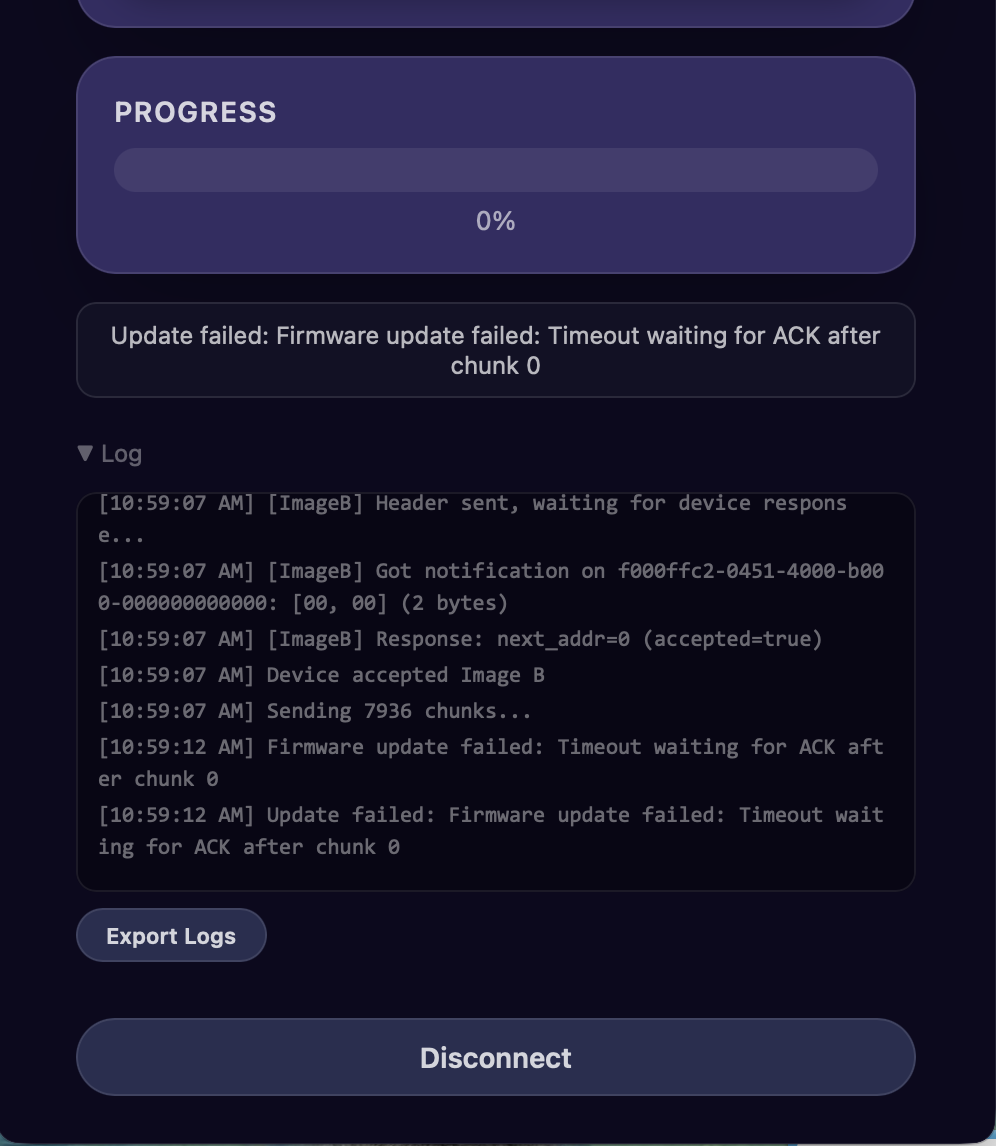
I was unsuccessful the first time I tried updating the Maestro using macOS Catalina (it displayed an error for Image B). I was however, able to update it using macOS 26.4 and again with 26.5 (beta).
I found that I can now update the Maestro using the iOS app however, it reverts the firmware version to 1.1.9. As I don’t think there’s any difference between the two versions, you’re probably okay to continue using 1.1.11.
For giggles and grins, I tried using Catalina again. I deleted the updater app from the Applications folder and all of the support files. I then downloaded fresh copies of the updater files and did a reinstall. I made sure to select both Image A and B and although it took 15 minutes to complete the update, I ended up with 1.1.11. The only thing that did not happen was the reboot of the Maestro. No problem, I just power cycled the pedal and then updated the Default Modes using iOS.
What happened with the first attempt using Catalina? I’m guessing that my Image B file might have been corrupted during the download.